Dreamdata + Slack Integration: Notify Teams When Accounts Engage
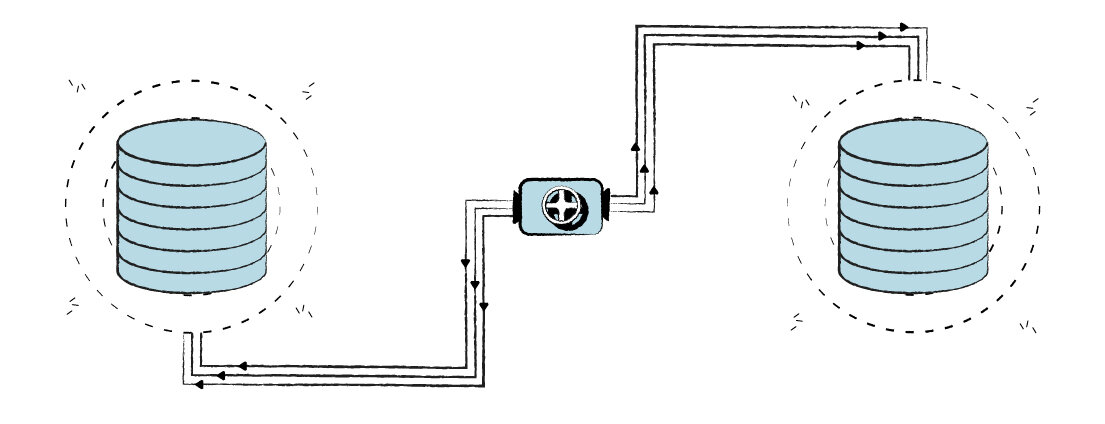
Dreamdata can send a Slack notification when a company or contact joins an audience you have defined. Instead of asking sales to check another dashboard, you can share the relevant account signal in the channel where the team coordinates its next step.
What the Dreamdata-Slack integration does
This is a one-way notification workflow from Dreamdata to Slack. Dreamdata monitors the company or contact audience you select.
When a new contact qualifies, Dreamdata sends a message to your chosen public or private Slack channel. The integration does not read Slack conversations into Dreamdata or treat internal chat messages as attribution touchpoints.
A company notification may include the company name, account owner, country, industry, employee count and engagement score, when available. Contact notifications can share role, seniority, country and company; an optional setting can add contact details such as name and email.
Choose that option only where your team has an appropriate basis for sharing personal information in Slack.
Why connect Dreamdata to Slack?

Bring account engagement to the right people.
A channel owner can see when an account meets your audience criteria without repeatedly checking a report.

Give marketing and sales the same context.
Team members can open the underlying customer journey before choosing an outreach or nurture action.

Tie an alert to a specific workflow.
For example, send newly engaged target accounts to the account team’s channel rather than broadcasting every website visit.

How to connect Slack in Dreamdata
In Dreamdata, open Activation Hub > Notifications > Slack and select Enable. Authorize the Dreamdata app to post in your Slack workspace.
Choose Add New. Give the notification a clear name and select a company or contact audience.
Select the destination Slack channel. For a private channel, first add the Dreamdata app to that channel in Slack.
Choose whether contact notifications should contain personal details, where appropriate, then save the notification.
Use Send test notification to confirm that the selected channel receives the message. After the next data modeling run, check a genuinely new audience member to confirm the audience trigger behaves as expected.
For interface screenshots and the latest steps, follow the official Slack Notifications setup guide.
Example: turn webinar engagement into a useful handoff
Suppose a webinar campaign brings several target accounts back to your website.
Marketing creates an audience for the company criteria that matter to this campaign and sends new audience entrants to a shared Slack channel. A named owner opens the Dreamdata customer journey, checks the interactions recorded for that account, and coordinates with the opportunity owner before deciding whether to follow up or continue nurturing.
The notification tells the team that a rule was met. It does not establish purchase intent on its own. That distinction keeps a useful signal from becoming an automatic sales instruction.

How to check that it works
Test message arrives, but no real alerts: verify the selected audience and wait for a new entrant after a data modeling run. People and companies already in the audience are not sent retroactively.
No messages in a private channel: make sure the Dreamdata app has been added to that channel and that the correct destination was selected.
Alerts contain too little context: check whether you selected a company or contact audience and which fields are available for those records.
Alerts arrive later than expected: the documented workflow follows Dreamdata’s data modeling schedule; it is not an instant notification for every visit.
Frequently asked questions
Find answers to the most common questions B2B marketers ask when evaluating the Slack integration.
-
No. Notifications are sent after the configured data modeling runs when new companies or contacts qualify for the selected audience.
-
No. This connection sends selected audience notifications from Dreamdata to Slack. It does not import Slack conversations into Dreamdata.
-
The test confirms that the selected channel can receive a message. Real alerts depend on new companies or contacts qualifying for the chosen audience after a data modeling run. Check the audience criteria and whether any new members have entered.
-
Yes, provided the Dreamdata app has been added to that private channel and the notification is configured to use it. Test delivery after setting up the destination.